
How to Configure IIS SMTP Server to forward emails using a Gmail account |
Jul
16
|
| « Creating a GPO to Disable Services on Windows Servers | Remote Desktop Connection (RDP/RDC) will automatically resize when moving it » |
This is very useful when you want to test outgoing email for an application but not have access to an SMTP server. This is great for many applications including SQL Reporting Services, SharePoint and any other application which allows you to set an email/smtp server.
Prerequisites
1. Create and setup a Gmail account at http://www.gmail.com
2. Enable the Gmail account for POP3 in Gmail, you can follow the instructions on how to do this here: http://mail.google.com/support/bin/answer.py?answer=13273&cbid=wl8yzeug2lob&src=cb&lev=topic
3. Install the mail server role in IIS6 or IIS7. This should include both “POP3” and “SMTP” – you read more about this installation here: https://jppinto.com/2009/02/installing-iis-70-with-smtp-on-windows-server-2008/
Configure SMTP
We will now configure the IIS Server to forward messages using the Gmail account.
Open IIS Manager
Right Click “IIS SMTP Virtual server”
Select “Properties”
Select the “Access” Tab
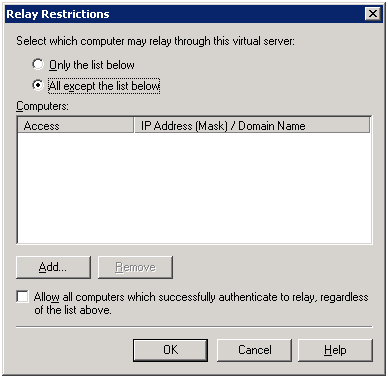
Click “Relay”

Make sure “All except the list below” is selected
You can add servers to this list that you want to block from sending mail to this server if you press “AddÔò¼├┤Ôö£├ºÔö¼┬¼”
Press “OK”
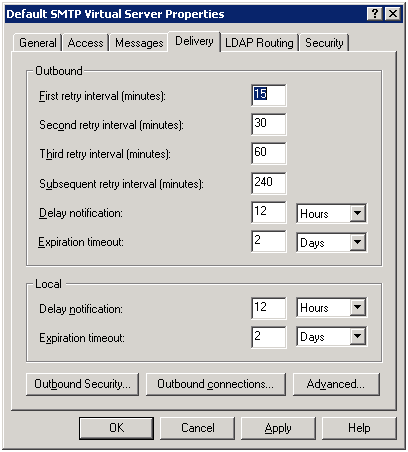
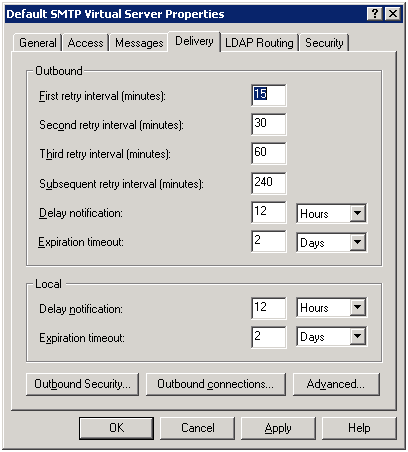
Select the “Delivery” Tab
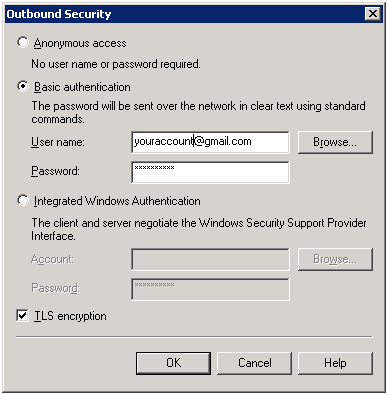
Press “Outbound SecurityÔò¼├┤Ôö£├ºÔö¼┬¼”
Select “Basic Authentication”
Enter your Gmail account (i.e. [email protected])
Enter your Gmail password
Select “TLS encryption”
Press “OK”
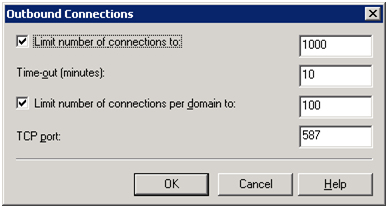
Press “Outbound connectionsÔò¼├┤Ôö£├ºÔö¼┬¼”
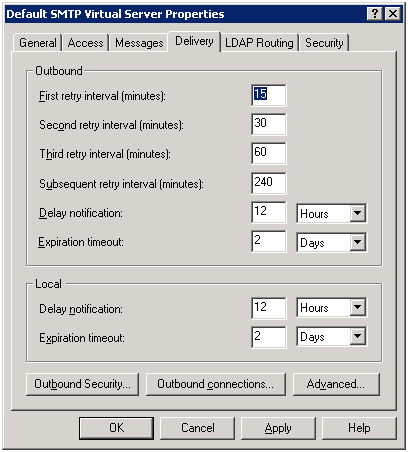
Set TCP port to “587”
Press “OK”
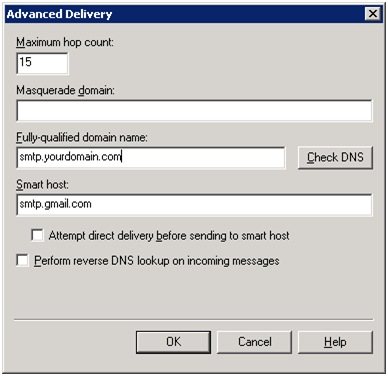
Press “AdvancedÔò¼├┤Ôö£├ºÔö¼┬¼”
Enter the Full-quailified domain name – this should be what you want this SMTP server to be called. If your server name is “SMTP” and your domain is “YOURDOMAIN.COM” then the entry should be “smtp.yourdomain.com”
Enter “smtp.gmail.com” as the “Smart host”
Press “OK”
Now configure the outbound email server in your application to use “smail.yourdomain.com” and it should relay the email through Gmail.
”
“
”
“
”
“
”
“
”
“
“”